


This guide walks you through setting up Multi-Factor Authentication (MFA) for secure access to your BDO Global and Client Portal accounts. With MFA, you benefit from enhanced protection and a smoother, more reliable login experience across all your BDO services.
You can verify your identity using three options: Microsoft Authenticator App; Text Message; or Phone Call.
Step 1.1:
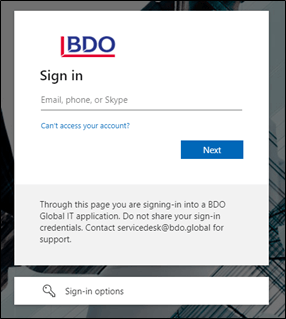
On the portal website, sign in to your portal account using your email, phone number, or Skype.
Click Next.
Step 1.2:
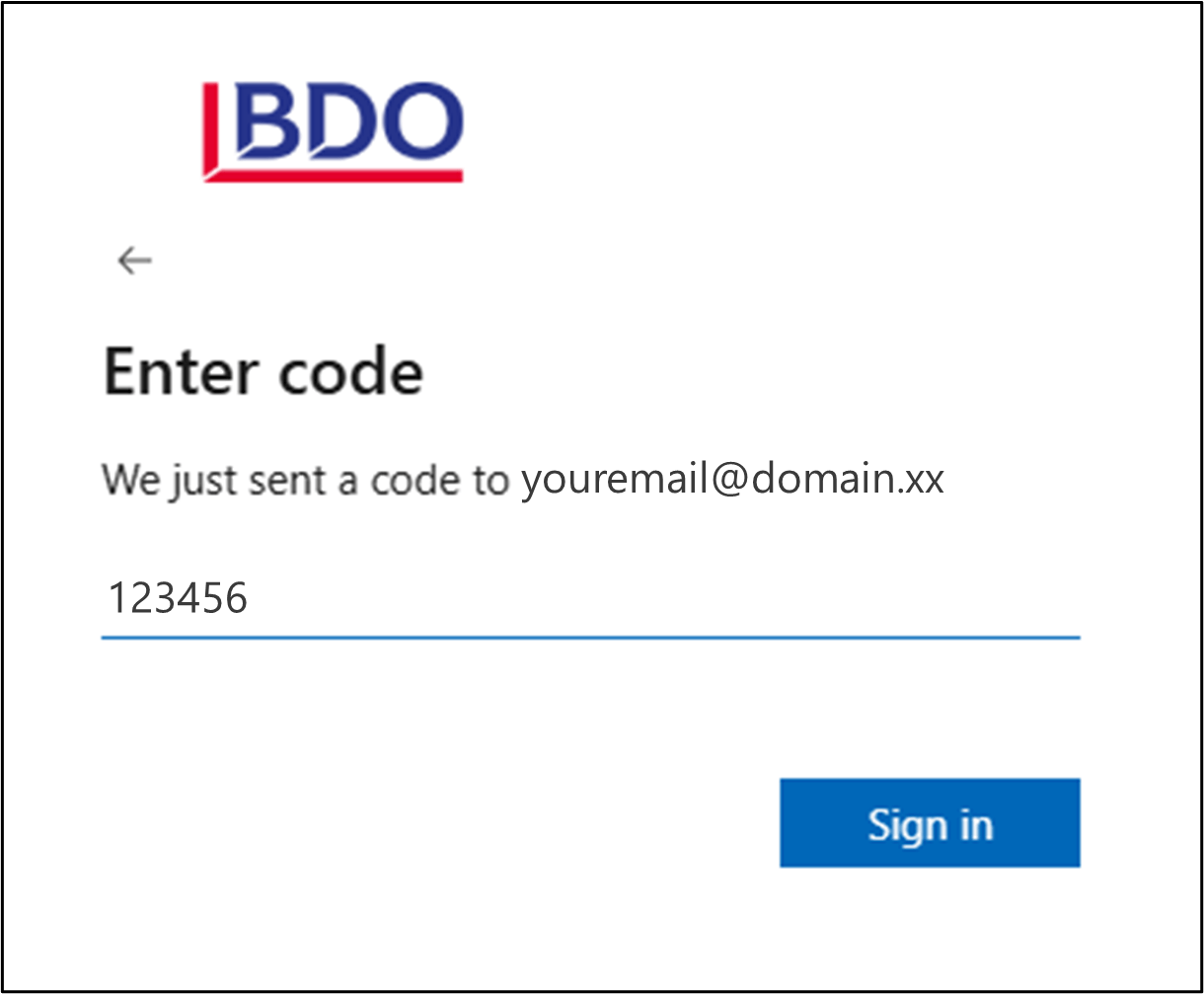
You will be sent a code to your email.
Enter the code.
Click Sign In.
Step 1.3:
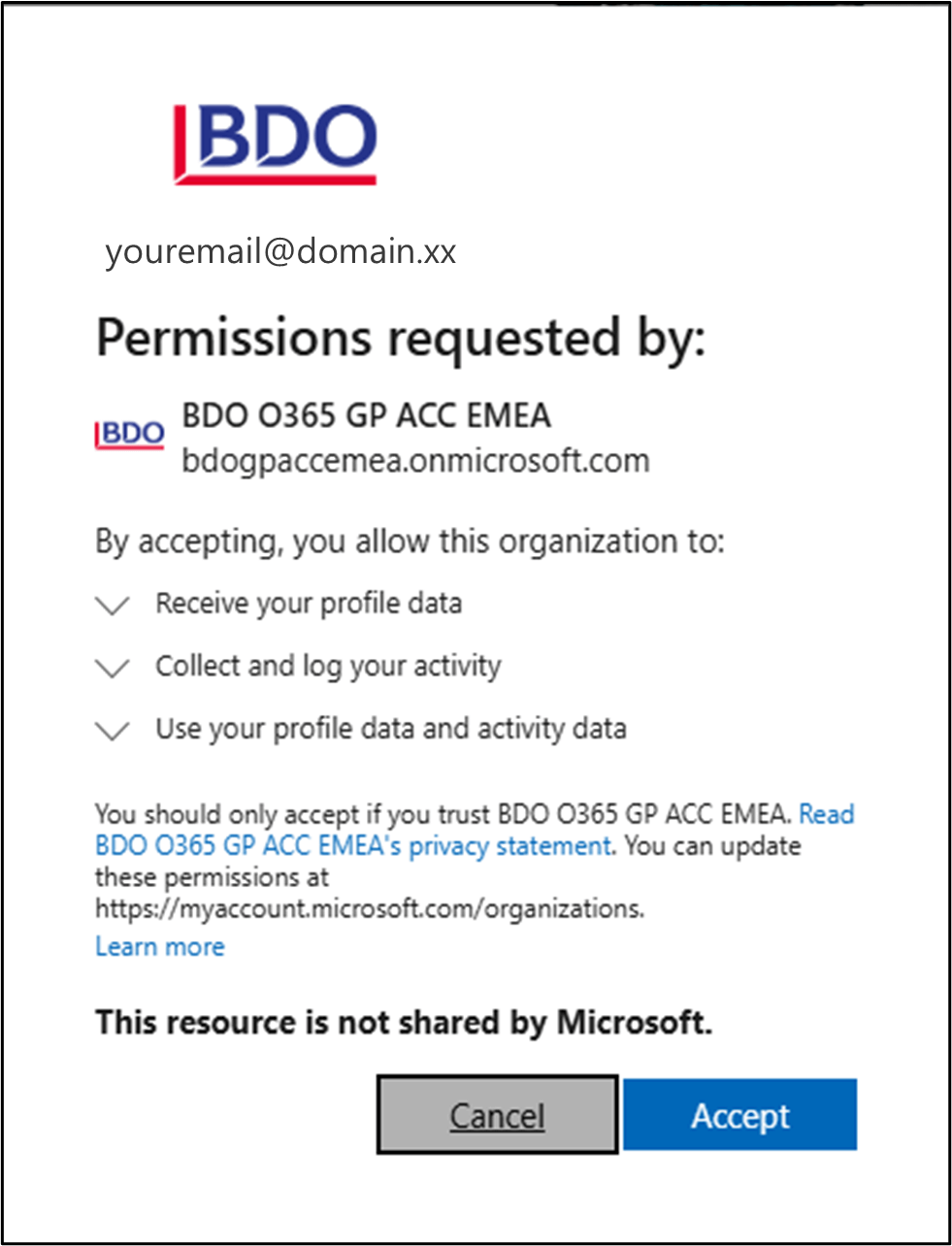
Click Accept.
Step 1.4:
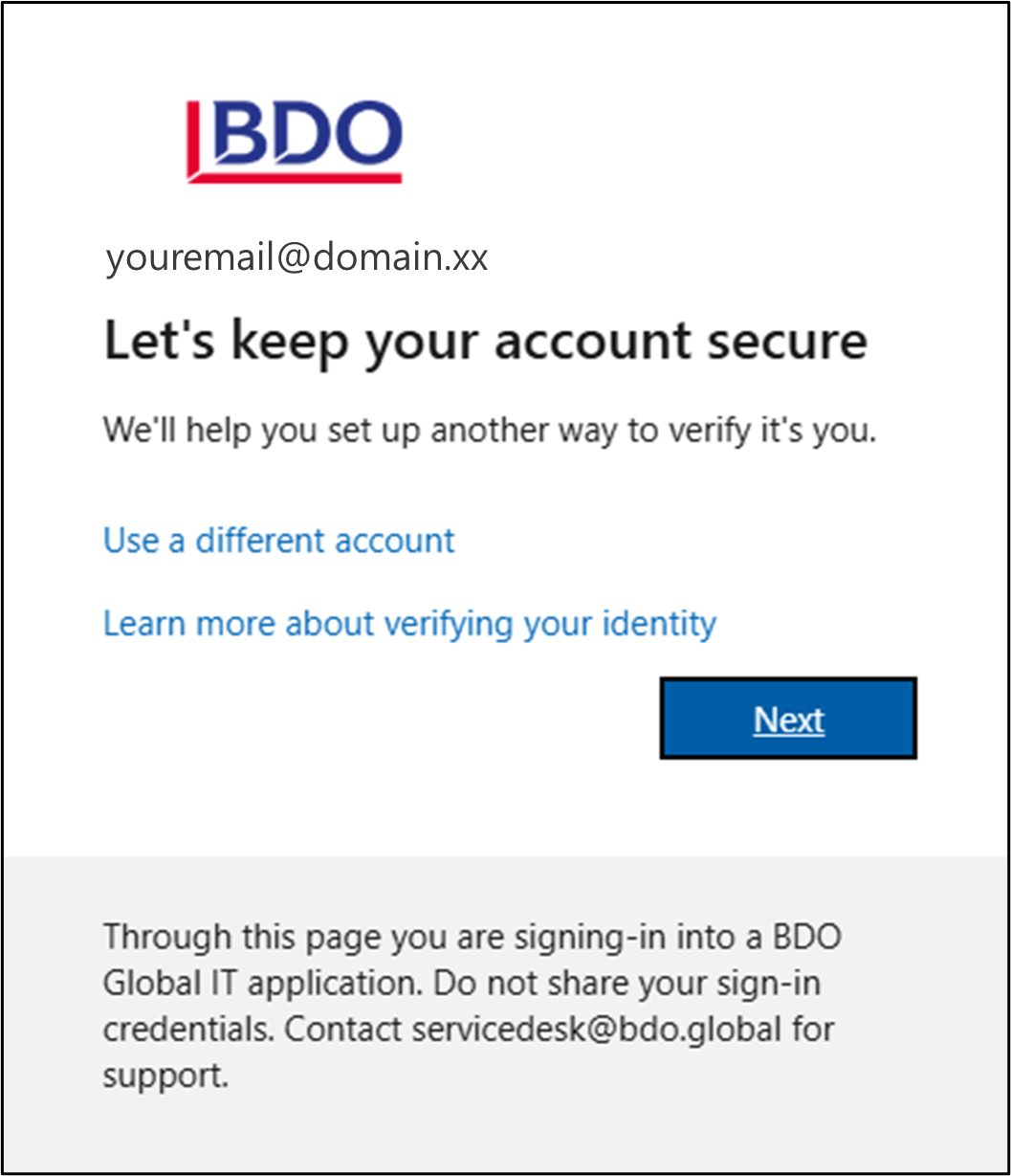
Click Next.
Step 1.5:
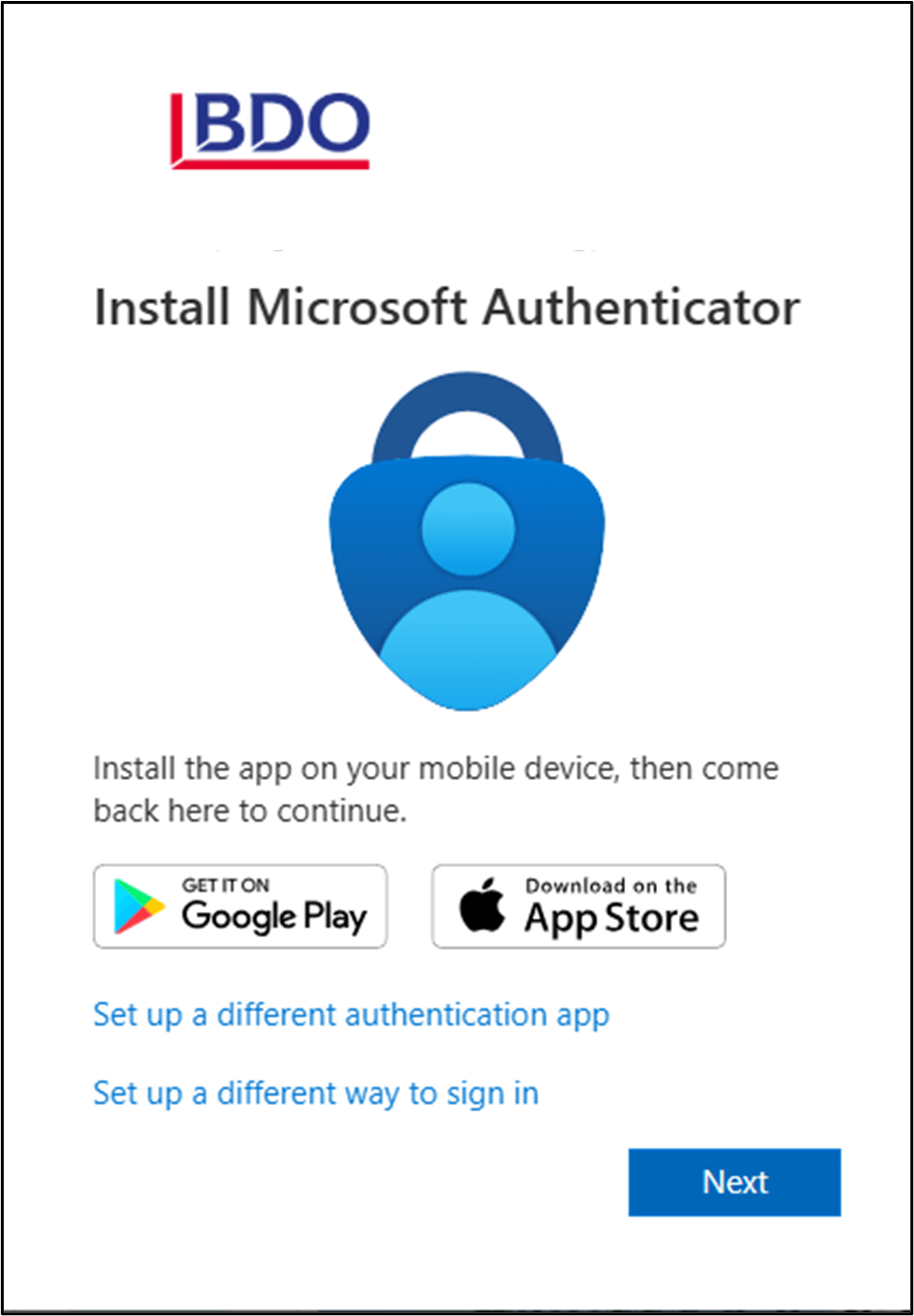
Download the Microsoft Authenticator App to your Android or iOS mobile device.
Once installed, click Next.
Step 1.6:
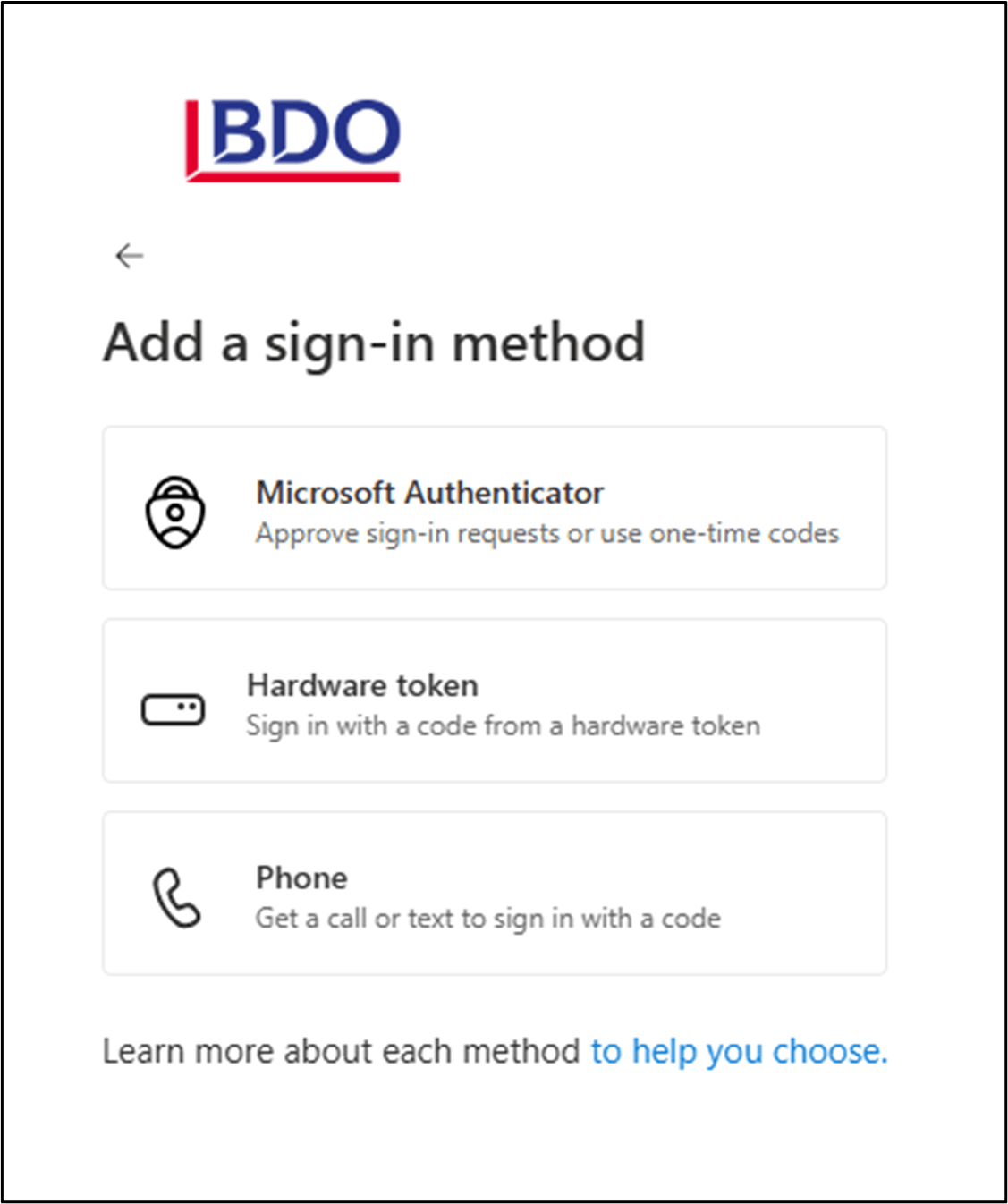
Select the sign-in method you would like to add.
Choose your method:
Option A: Microsoft Authenticator App
OR
Option A: Microsoft Authenticator App
Step 2.1:
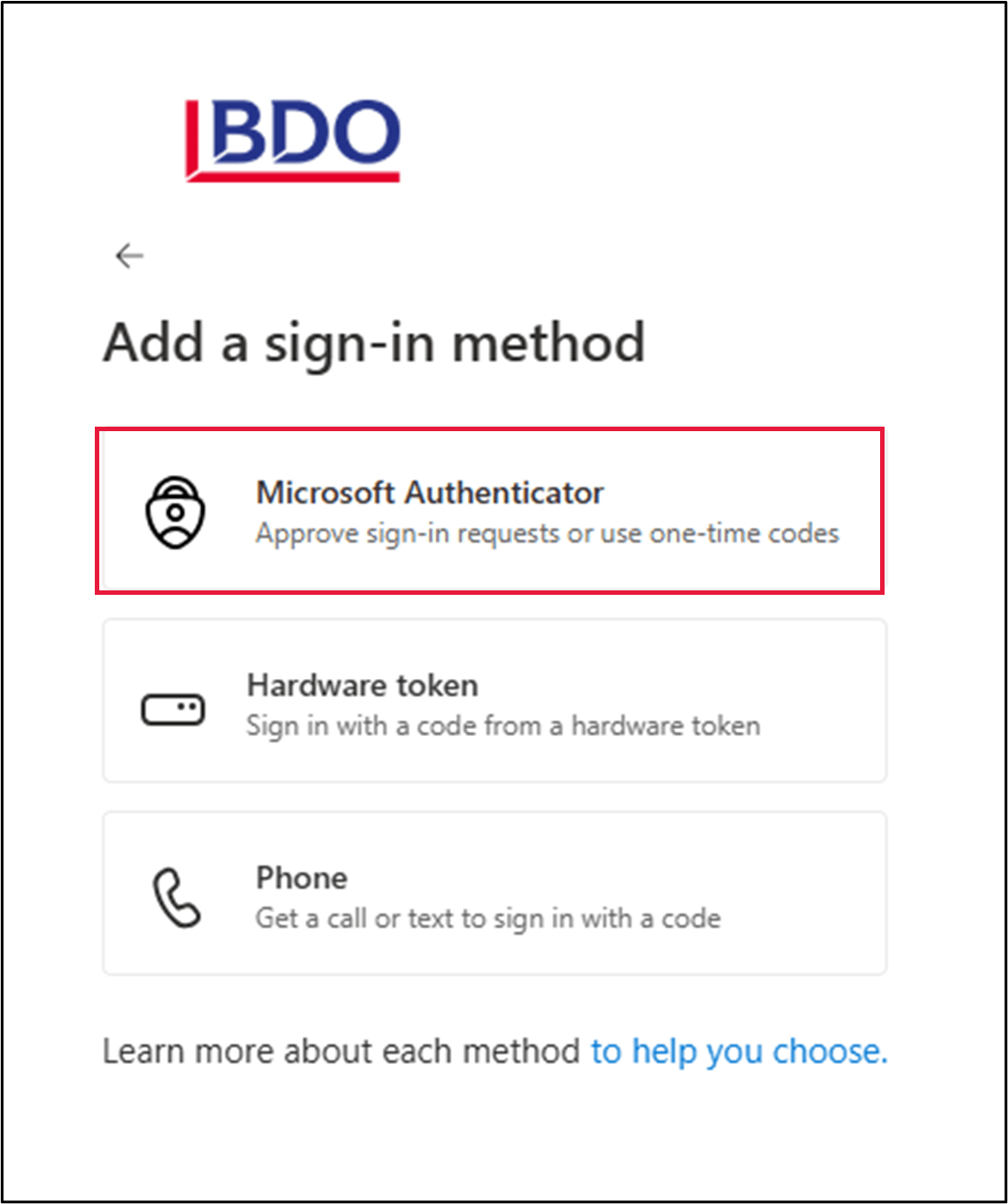
Follow Steps 1.1-1.6 above. In Step 1.6, select the Microsoft Authenticator option.
Step 2.2:
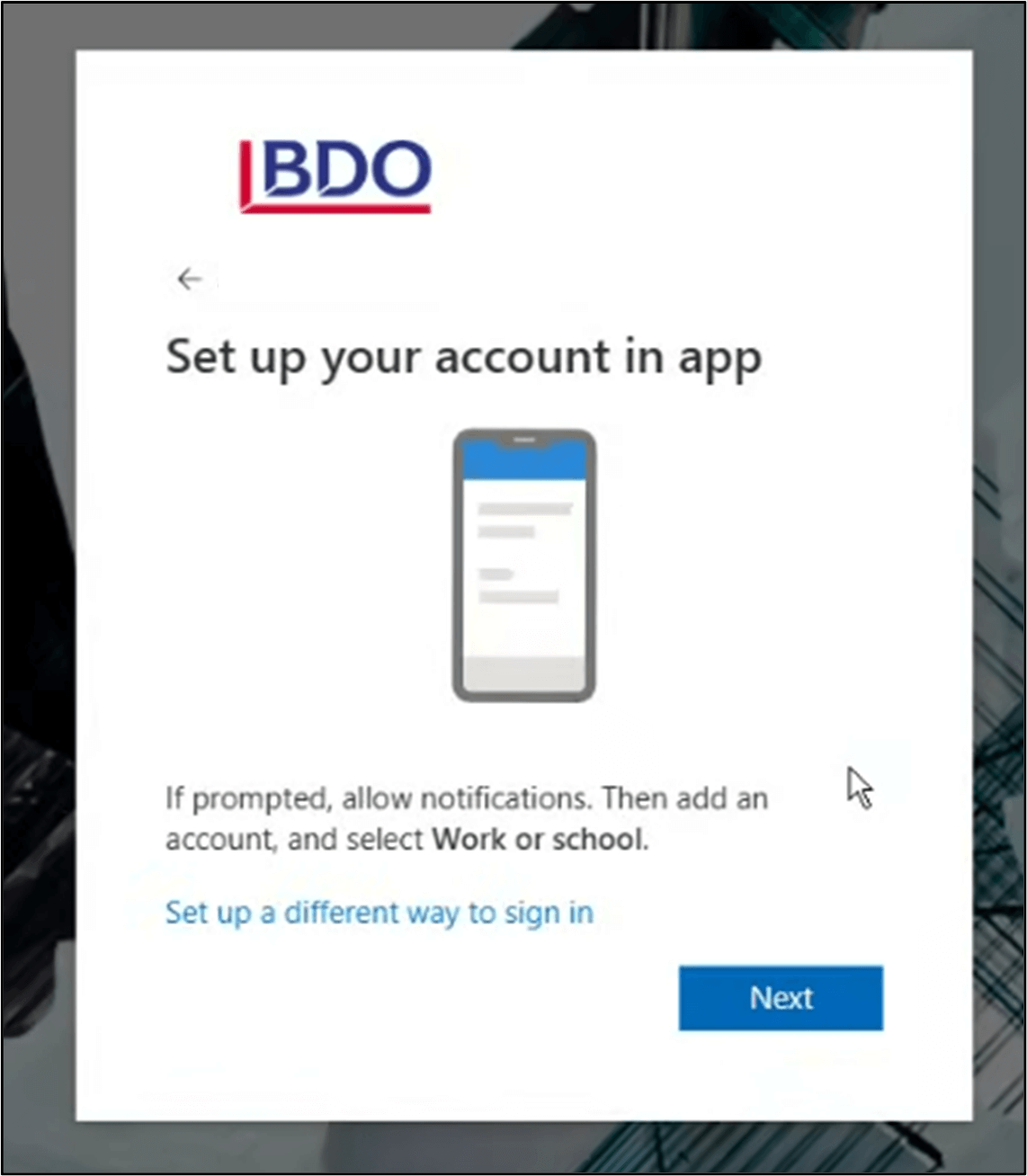
In the app, add an account and select Work or school.
Click Next.
Step 2.3a:
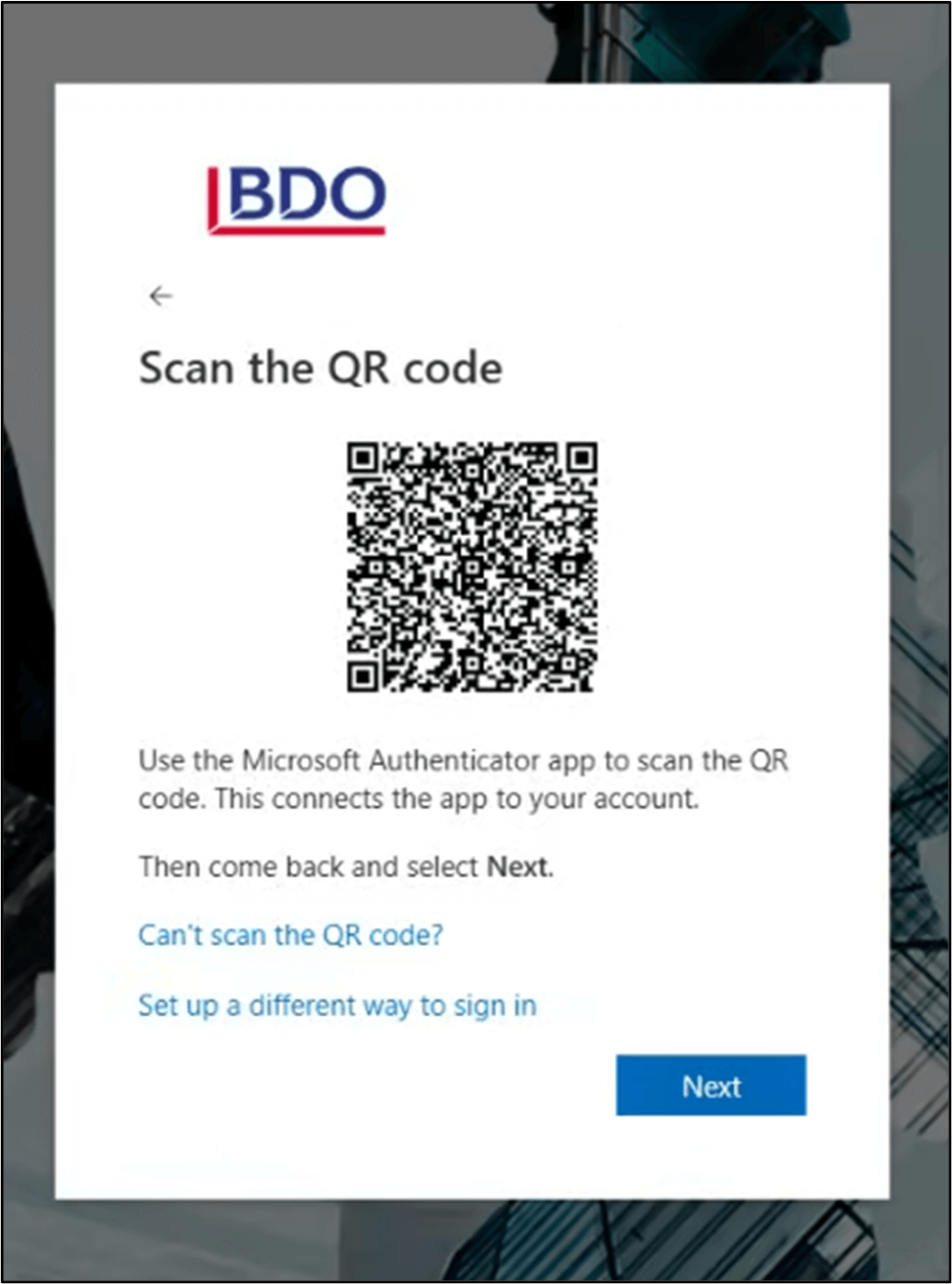
Using the Microsoft Authenticator app, scan the QR code OR;
Step 2.3b:
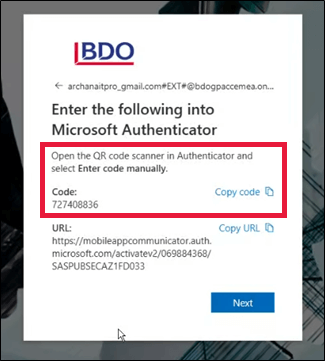
Enter the code manually into the Microsoft Authenticator app.
Click Next.
Your Multi-Factor Authentication (MFA) account linked to your Authenticator app will now be set up.
Option B: SMS or Phone Call
Step 3.1:
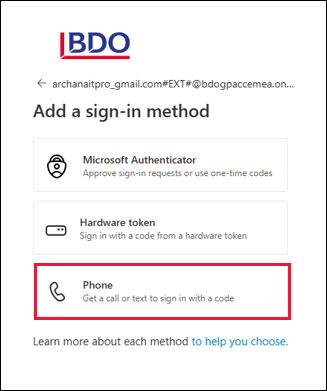
Follow Steps 1.1-1.6 above. In Step 1.6, select the Phone option.
Step 3.2:
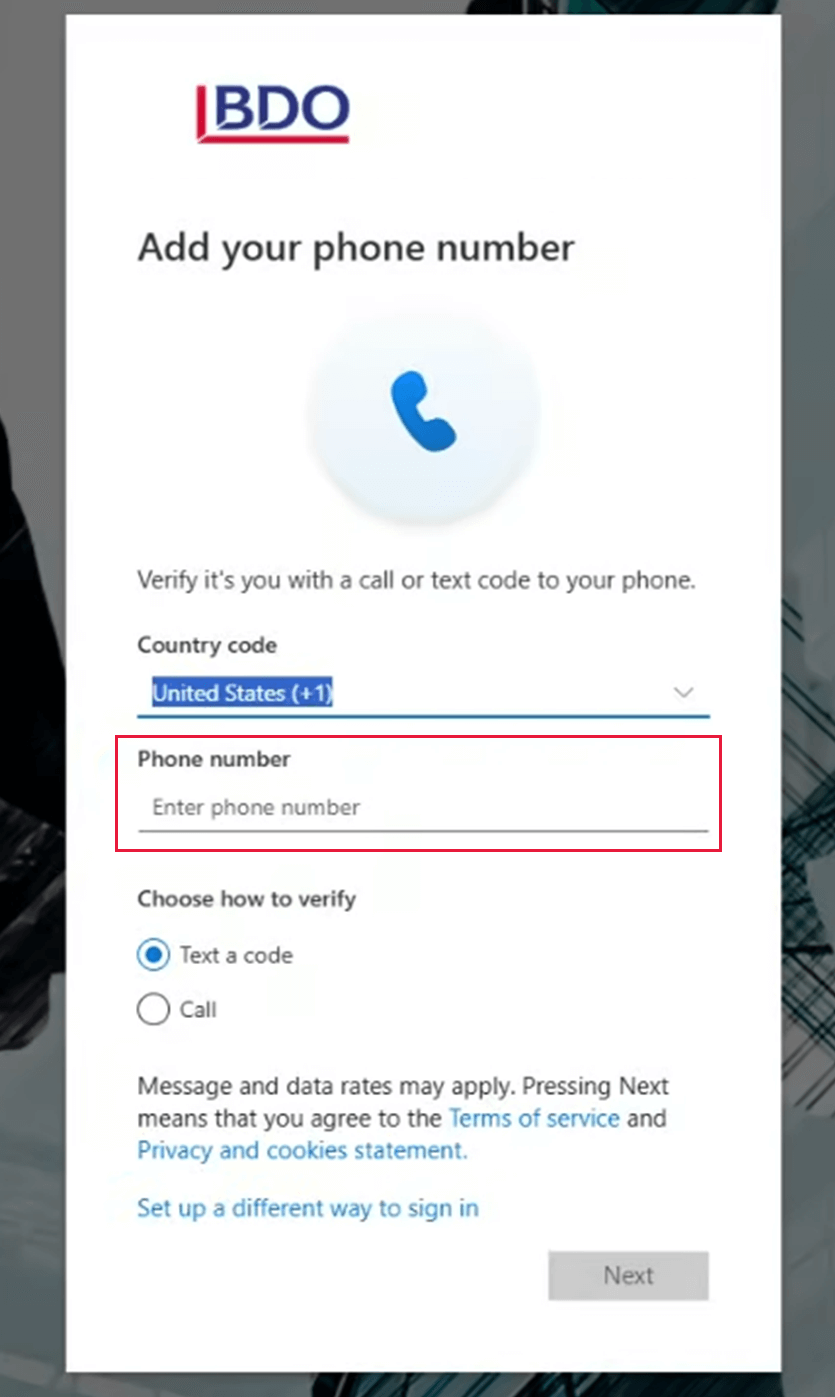
Enter your phone number.
Step 3.3:
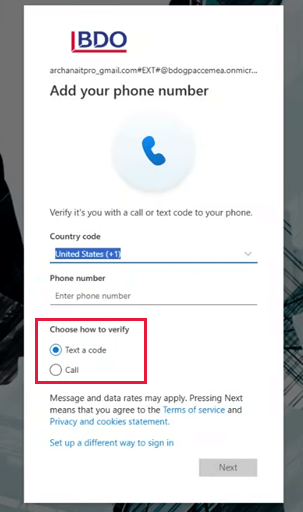
Select whether you would like to verify your account through a Text or Call.
Click Next.
Step 3.4:
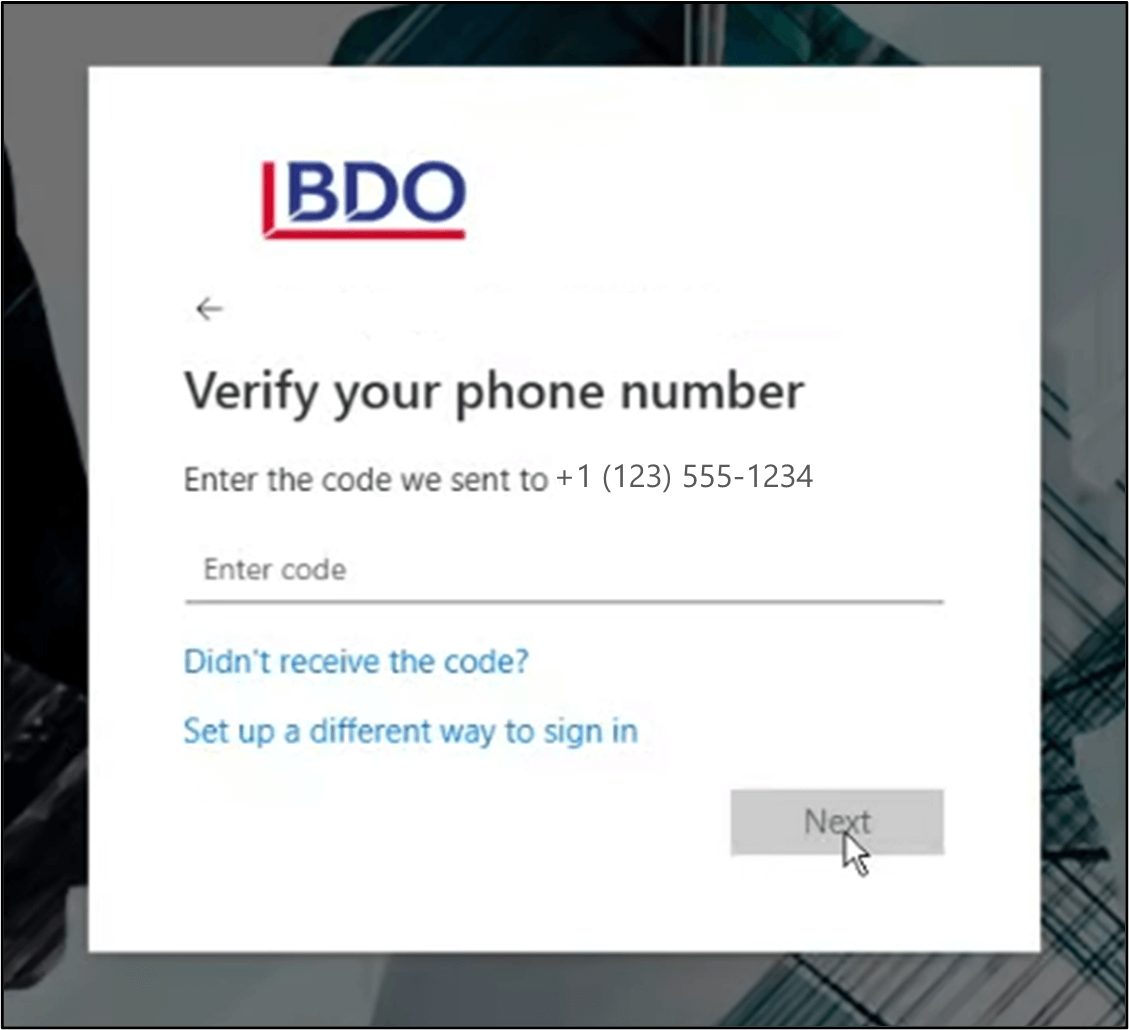
You will receive a code through the selected method.
Enter the code.
Click Next.
Your Multi-Factor Authentication (MFA) account linked to your phone number will now be set up.
If you need technical support, please complete the Global Portal form, the Client Portal form, or call 1-888-236-0009 and a member of BDO's IT team will be happy to assist you.